
Let’s look at how you can create a Listen Page to showcase your video content.
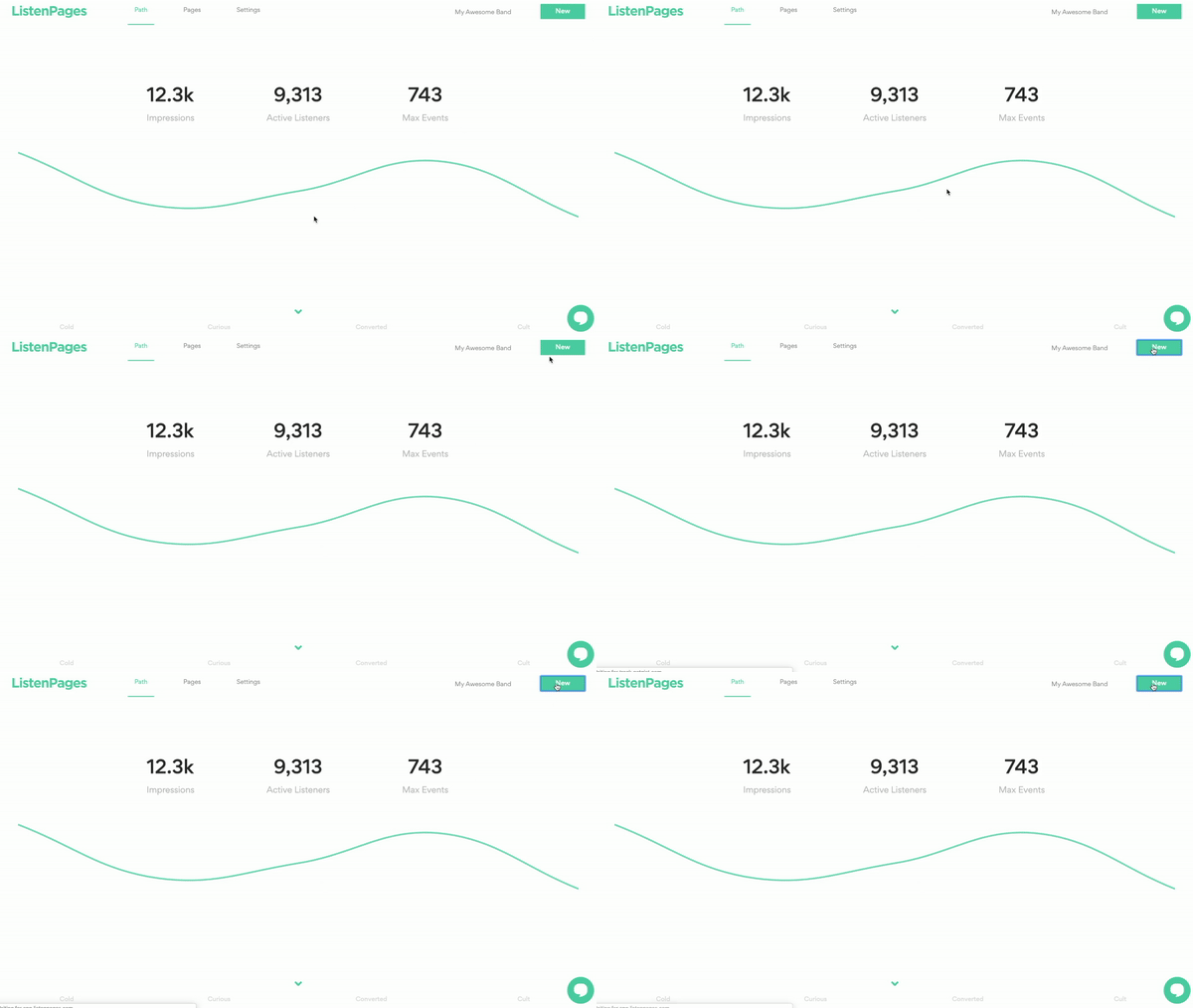
First, click the 'New' button.
From your Path (dashboard page), click the ‘New’ button in the top right hand corner.
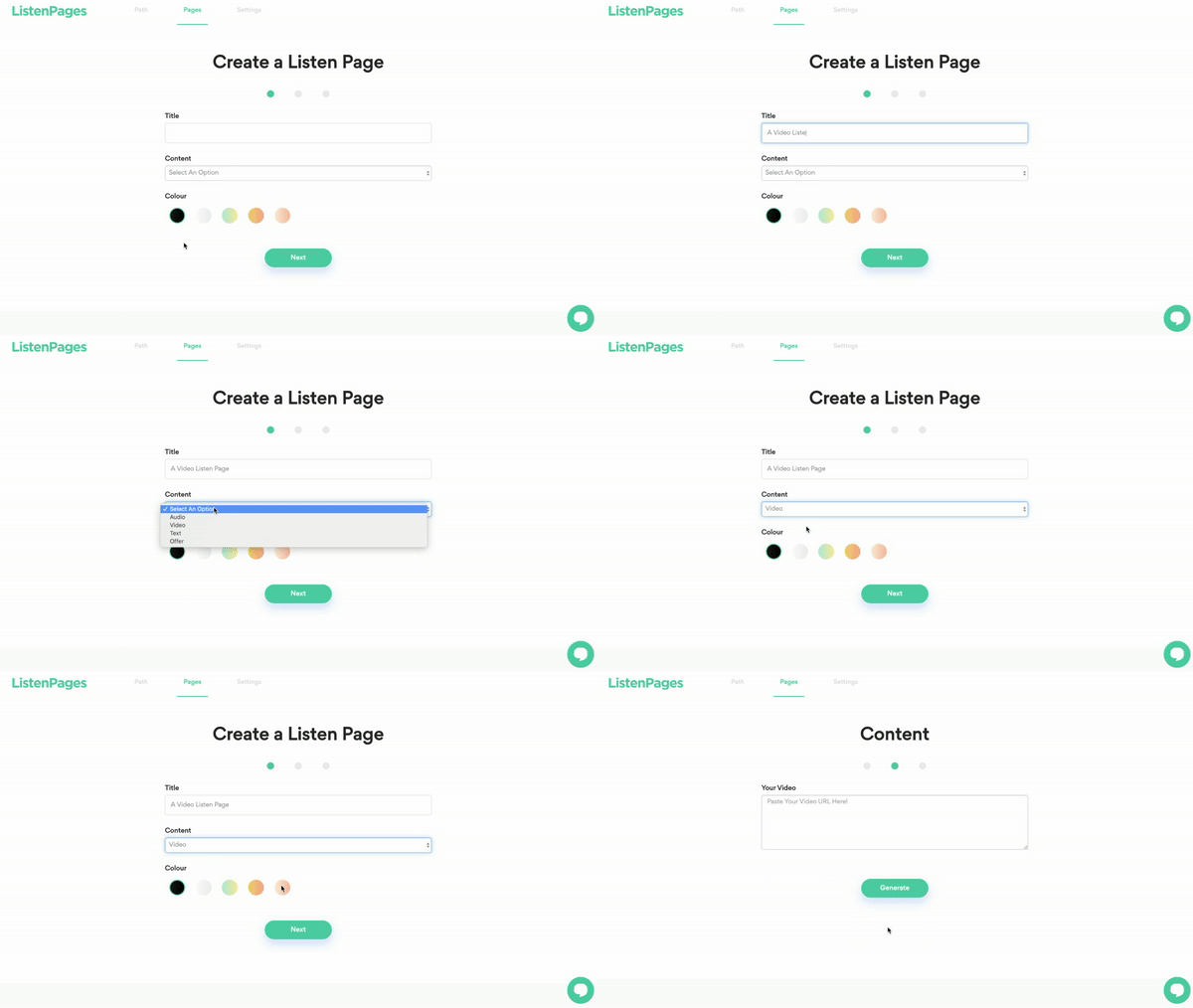
Next, name it.
Remember, the title you give this page will be shown publicly on the Listen Page, so make sure to call it something that looks professional and is descriptive of the content you are showcasing.
It’s probably best to use the title of your audio here.
Then, choose the content type.
To create a video listen page, choose ‘Video’ from the content menu.
Next, choose the page colour.
Choose the colour that suits your aesthetic best.
When in doubt, use black — it works best for a distraction-free environment.
Then, hit the ‘next’ button.
Now it's time for the video.
Copy the external link for the video you’d like to showcase from where it was uploaded and paste it into this box.
Although we support a selection of video hosting sites, we find that YouTube generally works best.
If your video is on YouTube, simply grab the URL and drop it in here.
It's time to generate!
Once your link is pasted in the box, hit the ‘Generate’ button.
ListenPages will automatically create a special piece of code for your video (known as an ’embed’ code) and show a preview of it below.
If you’re seeing your video, it means you pasted the right link — great job!
Then, hit the ‘next’ button.
Now get sharing!
That’s it! You’ve created a video Listen Page.
Take the link that ListenPages has generated for you and share it out to all of your followers.
Your goal is to get as many people clicking on that link and engaging with your content as possible.
When they do, the data will display on your Path.
👉 Next up: Text Listen Page overview